Live Love Laugh Learn … Create the possibilities

How to add a badge to your WordPress blog

SMAG ccbyncnd

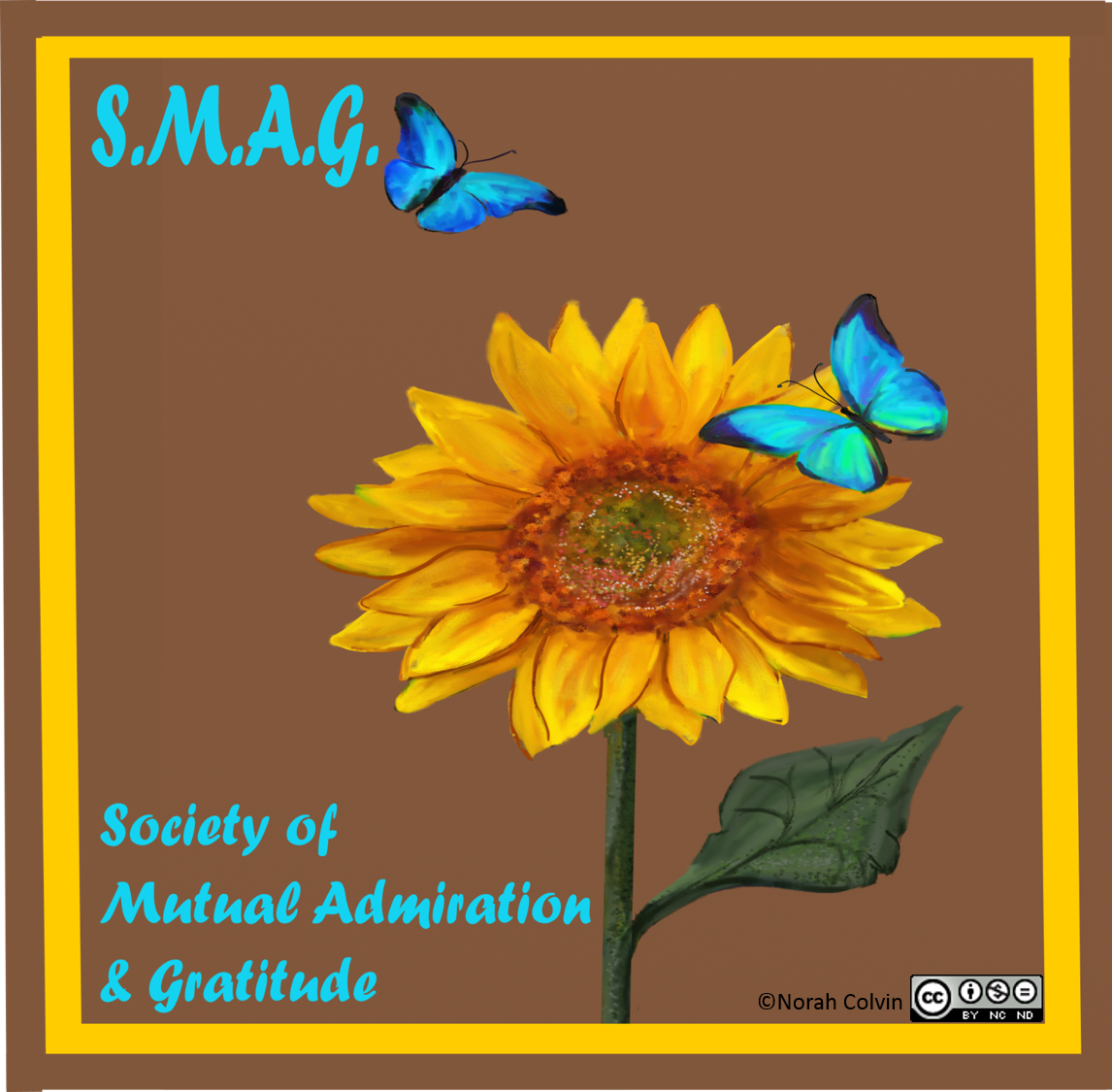
A couple of months ago I invited readers of my blog to join S.M.A.G. Society of Mutual Appreciation and Gratitude and to paste the badge onto their blogs should they wish to do so. Well, invitation isn’t quite the correct word because membership of the group was not conferred in response to an invitation, but automatic through offering other bloggers support and encouragement through positive comments. I’m pleased to say there are a good number of S.M.A.G. members in the blogosphere regardless of whether or not the badge adorns their blog.

A week or two ago Jules Paige, who blogs at Jules in Flashy Fiction (and elsewhere), commented that she wasn’t sure how to go about adding the badge to her blog. I offered to send her instructions, and thought that maybe the information would be useful for others as well.

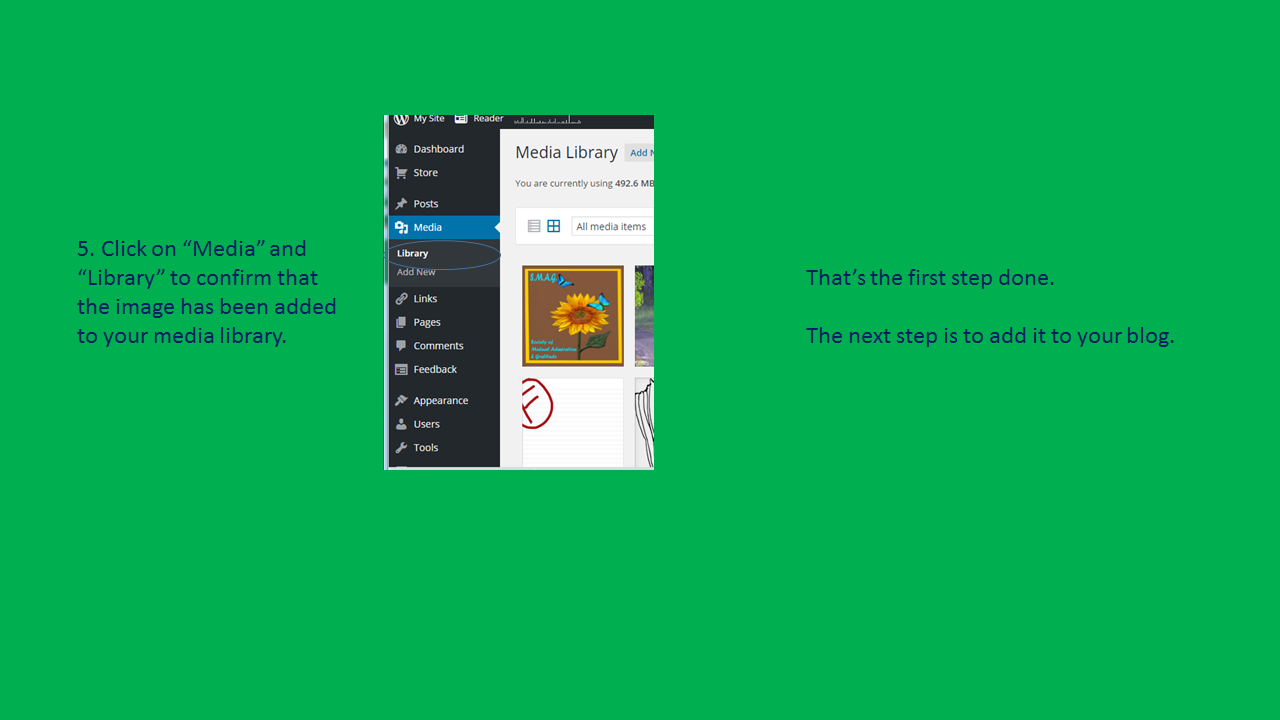
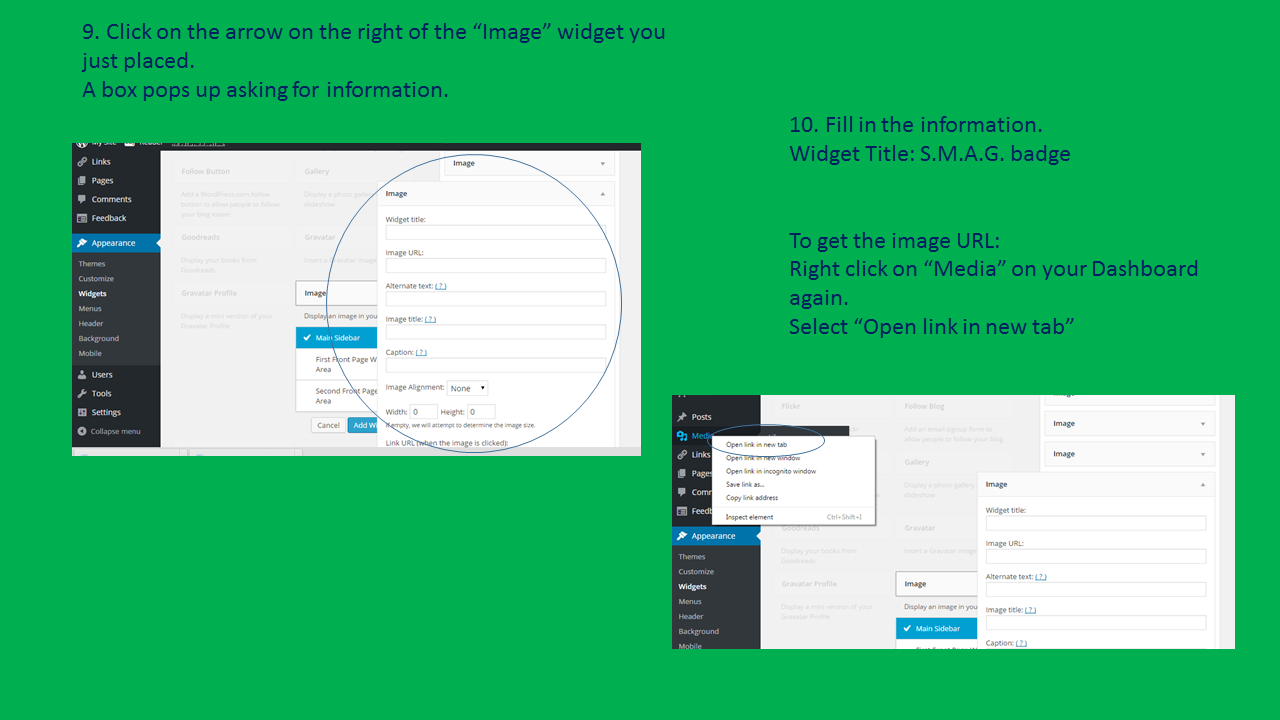
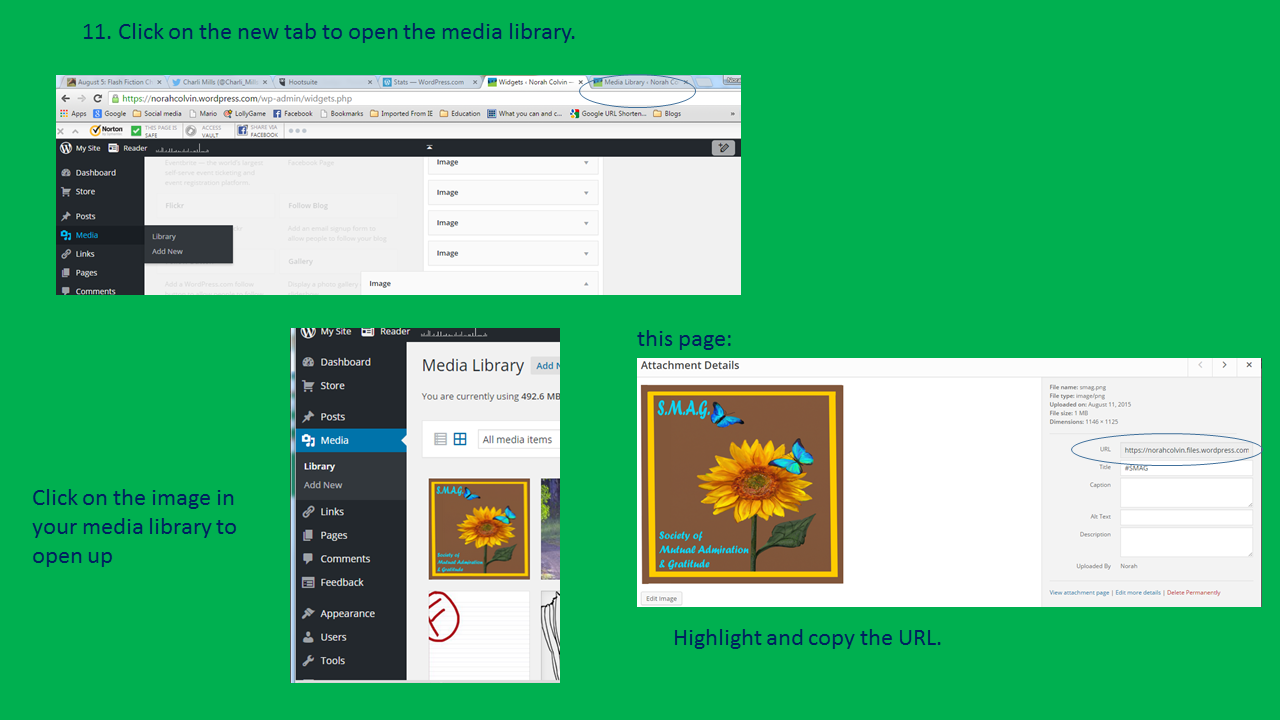
The following instructions are specific to the S.M.A.G. badge and WordPress blogs. A similar process would be used to add any image to a WordPress blog. However I am unsure how similar the process is for others. Please let me know if you find these instructions useful, or lacking in any way.

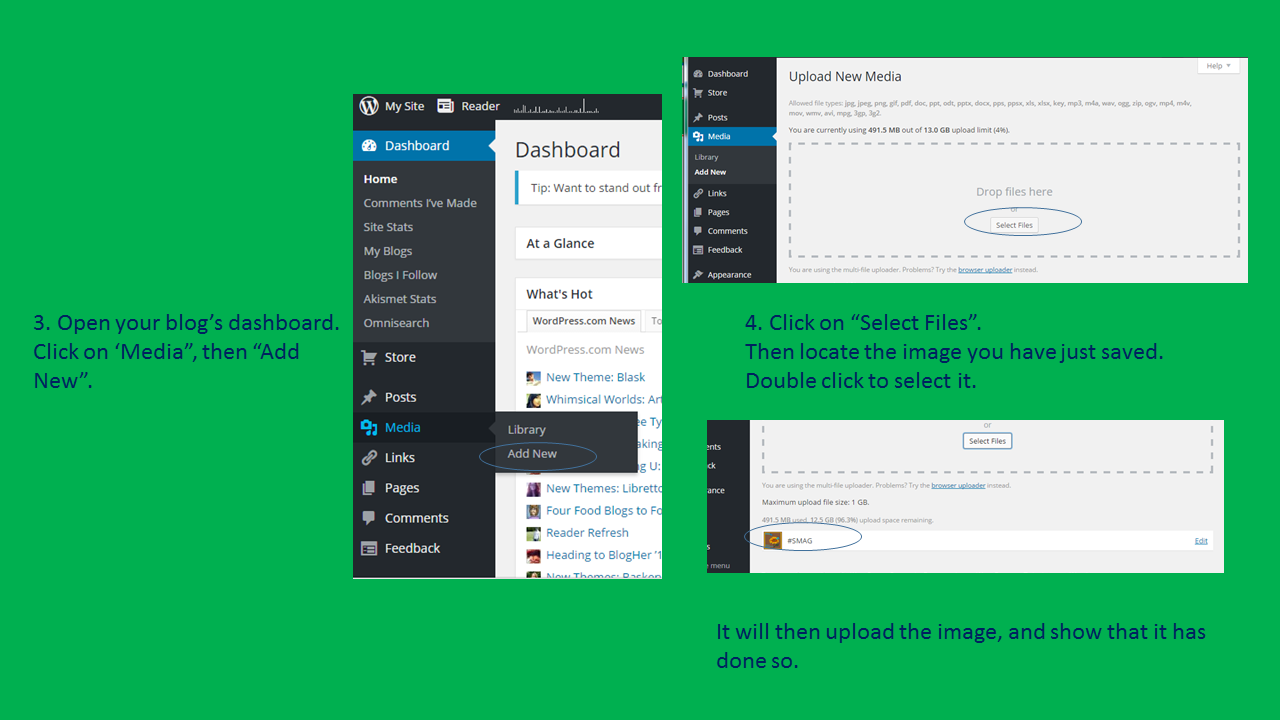
© Norah Colvin
© Norah Colvin
© Norah Colvin
© Norah Colvin
© Norah Colvin
© Norah Colvin
© Norah Colvin
© Norah Colvin
© Norah Colvin
© Norah Colvin
© Norah Colvin
© Norah Colvin
© Norah Colvin
© Norah Colvin
© Norah Colvin
© Norah Colvin

Thank you

Thank you for reading. I appreciate your feedback. Please share your thoughts.


Comments

20 responses to “How to add a badge to your WordPress blog”

  1. That’s what friends are for | Norah Colvin Avatar

    […] In this post, I acknowledge and promote recent works published by my SMAG community; lovely people who support me both here and over at readilearn. SMAG is an acronym for Society of Mutual Appreciation and Gratitude. The community is open to anyone. All that is required is friendship. If you’d like to add the badge to your blog, I’d be honoured. If you’re not sure how to do so, you can find instructions here. […]

    Like

  2. Charli Mills Avatar

    What a wonderful SMAG thing to post! 😀

    Liked by 1 person

    1. Norah Avatar

      Thanks Charli. 🙂

      Like

  3. macjam47 Avatar

    Great information, Norah.

    Liked by 1 person

    1. Norah Avatar

      Thanks Michelle. 🙂

      Liked by 1 person

  4. Autism Mom Avatar
    Autism Mom

    SMAG is a lovely idea and your step-by-step for adding the badge is brilliant!

    Liked by 1 person

    1. Norah Avatar

      Thank you. Will I see it on your blog?

      Liked by 1 person

      1. Autism Mom Avatar
        Autism Mom

        Yes, I think you will! Thank you! 🙂

        Liked by 1 person

        1. Autism Mom Avatar
          Autism Mom

          … and it is done! 🙂

          Liked by 1 person

          1. Norah Avatar

            Lovely! Thank you for sharing. I’ll check it out next time I’m over – won’t be long – I’ve received a couple of emails about your recent posts. 🙂

            Like

        2. Norah Avatar

          Lovely! You’re welcome. 🙂

          Liked by 1 person

  5. Sarah Brentyn Avatar

    This is a fabulous, helpful post. Thanks for sharing. And I will share it, too. 🙂 You are wonderful!!! (SMAG)

    Liked by 1 person

    1. Norah Avatar

      Thanks for your SMAGness too, Sarah. 🙂

      Liked by 1 person

  6. Bec Avatar

    A very helpful resource, Nor! I am surprised by how (relatively) complicated the process is! Your instructions step through it well and make it nice and clear. Geoff’s point about resizing is really helpful, too.

    Liked by 1 person

    1. Norah Avatar

      Thanks Bec. I’m not sure that it’s overly complicated. I just cut it down to minute steps. Geoff’s point is good. I probably should have added that info and maybe will – as soon as I have (make) time! 🙂

      Like

    2. Norah Avatar

      I have updated the last slide to include size information. I hope it is useful. 🙂

      Like

  7. TanGental Avatar

    Maybe I can just add a little to this most excellent post Norah! I was adding a picture of the cover of my new book the other day and it was wrongly sized so I had to reset the sizes in the widget box. If anyone experiences a problem with size when they open after attaching the badge then the solution is easy: not to panic! In the widget box you can choose your preferred sizing. I set mine at 200 x 300 but you can play with the sizing to suit.

    Liked by 3 people

    1. Norah Avatar

      Thanks for adding that information, Geoff. I probably should have added that. Maybe I will.
      The cover of your book looks great on your site. My copy has arrived into my Kindle. I look forward to reading it – soon. Still another one or two to go first. 🙂

      Liked by 1 person

      1. TanGental Avatar

        Ooooooooooo thanks Nora!

        Liked by 1 person

    2. Norah Avatar

      Thanks for the suggestion Geoff. I have now updated the final slide with sizing information – not quite as detailed as yours, but I hope it is okay. 🙂

      Liked by 1 person

Leave a reply to Sarah Brentyn Cancel reply

This site uses Akismet to reduce spam. Learn how your comment data is processed.